Thursday, 22 September 2011

Installing Daemoon Tools

When you'll download game form the WEB through torrent then you may notice that the extension of the file is "ISO" and to open "ISO" file we need a software to run it.Basically when we use software for these sort of files we are actually creating a virtual drive (ROM) which will execute our game or ISO file.Here is the method with which you can install this software easily.Follow these steps

Step 1 :
Open the Setup.
Double Click this Setup and start installing it.Don't worry we'll tell you that what you have to do next.
Follow these steps..


Step 2 :
Choose Your regional Language.
Choose language which is your regional because if you'll  choose any language rather than regional then it'll create mess for you to understand this software interface later.
I have Chosen English you can also choose this : )


Step 3 :
Press Next.
You know that mostly we press next whenever we are installing any software.So this time also press next and keep moving.


Step 4 :
Press I Agree.
If you have any contradiction with the terms and condition and you have read all of the terms then you can cancel it !!
But if you'll do this then you know that you cannot install it and then you have to find any other and I know you'll agree so press I Agree and go on.


Step 5 :
Choose Type > Press Next.
If you have not purchased then you can try it for free licence which means that you can use it for only 30 days i.e. month.
I have purchased it that's why I have chosen this well the choice is yours.After choosing Type of software then press Next.


Step 6 :
Press Next.
This is the dialogue box in which it will ask you to choose additional products of this software and then proceed.If you don't want their additional products or components then Unchecked first three boxes and just choose last two boxes and then press Next .


Step 7 :
Choose Browser Or Just Press Next.
I have unchecked "Browser's Start Page" because I don't need their browser.And then press Next.


Step 8 :
Choose Directory > Press Next.
Choose you directory in which you want to install this software and you have at least space available for it i.e. (12 MB) at least.
After choosing directory press Next and now your work is almost completed.
In the very next step installation will be completed.


Step 9 :
Installing.
Installation is completed and now its time to finish it start opening ISO files.


Step 10 :
Press Finish.
Congratulations.!!
We have installed it.

It is recommended you to choose Reboot Now
because if you'll reboot it now then it'll be good and then it can create virtual (empty) drive and when you'll open ISO files then your virtual drive of that game will be created successfully otherwise some errors may occur which may disturb you at that time.


Wednesday, 21 September 2011

Customizing Your Windows

Changing windows appearance and themes by customizing it is not so difficult as people thought but it just need your time that do you really want to do it or not? So,if you really want to do it and customize your window then you'll got it all here.We'll tell you that
  • How to add additional themes in windows?
  • How to change the appearance of windows?
Here is the method that how you can do it by following these Steps.

Step 1 :
Follow This Path..!
C:\WINDOWS\Resources\Themes
You Should know about this because this is the folder with which you have to play.This is the path in which all of your windows built in themes are present.

What we have to do is just to place customized theme which you have downloaded from the WEB or if you have created it by yourself.


Step 2 :
Installing theme Patcher software.
Actually whenever you want to customize your windows you cannot do it without the help of a software.Here we are going to install "Universal Ux Theme Patcher".
Without it whatever you have downloaded from the WEB will not be displayed or work untill you have any theme patcher installed on your PC then appearance or themes will work.


Step 3 :
Press Patch !!
Just Press Patch you'll notice that after doing this nothing happen but a message will be appeared.Now What to do with that message check next step.


Step 4 :
Press Yes !!
Press Yes because system have to be rebooted to include this stuff in its windows settings.Then game will start !!


Step 5 :
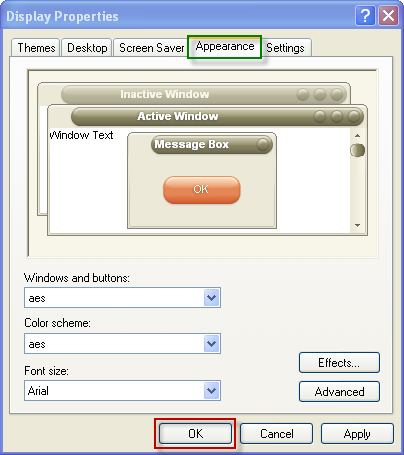
Opening Windows Visual Style file.
I have my own collection and  I am going to change my windows appearance by using this file.The thing which is to be noted here is the extension of that file, files which are related to windows appearance have this extension "Windows Visual Style" whenever you want to use any appearance just open this extension file don't open any other type of file which is in that folder e.g ".dll" , ".info" etc because this may disturb its working.


Step 6 :
Press OK !!
You can notice that you have seen this sort of theme for the first time in windows!!
It seems that we did our work Successfully now main thing is to press OK to apply it on our windows.


Step 7 :
Done !!
Congratulations !!
We have customized our windows.Try this by yourself too and spread this to others.
Now Enjoy  !!


NOTE : If you need that software then check this post and download it.
Themes Customizing Software

Tuesday, 20 September 2011

Downloading Torrent file

If you have any question in your mind that
  1. How to Download them ??
  2. How to Run these files ??
Then, these are the following and simple steps to have access to torrent files and it contains answers to all of your questions.Just follow the following steps

Step 1 :  Downloading torrent Software.
         
          U-torrent

         
          Bit-torrent

          
          Vuze


Step 2 :  Downloading torrent file from a torrent website.


Few torrent Websites are :
Open any of these website and search your desired movie,game,song etc.When you'll find it then download its torrent file by clicking on the button (for downloading torrent files) that they have provided.

Step 3 :  Opening file in torrent software.

Double Click the file that you have downloaded but be sure that you have completed Step 1.It will open in the torrent software and ask you to Browse the directory in which you want to download it.After mentioning the directory or address Press Ok to proceed.

Step 4 :  When Download finish then open that file and enjoy.!! 

What is Torrent file

If you don't know about this type of file than no need to worry we will tell you about it.It is the most frequently used file now a days on WEB and you should have info about it so that you can know that it's awesome.

It is basically a File which has links with different sub links (which have files addresses) located on other sites.When we download this type of file form torrent websites we basically are grabbing our required file from the path which is in that file i.e. uploaded by other host and we are its client (User) because we are downloading them.We cannot download that file until we have a torrent downloading software.

It means to download these files we need a software from any of them.!!
They are much important in this modern age because they can download movies,games and songs with huge size i.e. You have access to all and advanced games,latest movies etc. 
Sounds Good.!!

Photo Viewer

Usually people think that what if they can change their option for the photo viewer and upgrade it to different and new photo viewer.The answer to there question is Yes and we are going to tell you that how you can do this by installing your favorite photo viewer and enjoy your pictures in a new atmosphere.

Here is a Software just download it and enjoy its awesome features.
  • New Slide Shows features.
  • Additional Transitional Effects.
  • Brightness Control.
  • Color adjustment etc.
As you can notice that this software has a lot of features instead of viewing and you'll definitely enjoy it.

Screen Capture without any Software

Sometime people want to capture their screen but they were wondering that how to do it? So, now we are going to tell you that How you can capture your screen without any software. Here is the method through which you can capture your screen within a minute.

Step 1 : 
Press the following key.
This key is located in every keyboard (Mostly it is located after function keys) just press it and you'll notice that after pressing it nothing will happen..So don't need to worry just follow next step.


Step 2 :
Open Paint Brush.
We just need a software in which we can open some file or any editor but we are going to use Paint brush which I think is better but you can also use Microsoft Office, Photoshop etc.What we need is just that software and then..


Step 3 :
Press Ctrl + V.
You can notice that interface of Paint brush is open and what we want to do is just to paste that screen that we have captured a moment before.So, press Ctrl + V or you can do this too Alt + E and then P.


Step 4 :
Captured.
Congratulations..!!
We did it without any software.

You can notice that our screen has been captured and now it is in Paint brush so the next step is to save it and I guess you know that how to do it : )
Now Enjoy it and spread it to others !!

Monday, 12 September 2011

How to do Windows Partition

When you were installing window and you'll reach on the step where you PC drives are visible to you and below them there are different options.Then this thing indicate that the time to do partition has reached.And today we are going to tell you that How to do windows partition ??
Here are some of the steps follow them and do what you want.

Step 1 :
Press 'D'
When you'll press 'D' then another set of options will be appeared which is actually the confirmation that do you really want to delete that partition.


Step 2 :
Press Enter to proceed.
You have to press Enter which is the confirmation that you really want to delete that partition.This will appear only once and then no matter how many partitions are there you just have to press Enter and one more key.
To know about that key move to next step.


Step 3 :
Press 'L'
You can notice that as you have choosen "C:\" drive it will be deleted when you'll press 'L'.And after that we'll move to the previous screen which will be showing that this partition is deleted or not.


Step 4 :
First "C:\" drive deleted.
This screen is the confirmation that you have successfully deleted your desired partition.You can notice that "Unpartitioned space" is visible on the screen which is the confirmation that drive is deleted.And now we are going to delete next partition which is "E:\" drive.


Step 5 :
Press 'D' again.
As I have told you that we are going to delete next partition that's why we are going to repeat previous procedure again.


Step 6 :
Press 'L'.
As you'll press 'L' you can notice that this drive will be deleted and same screen will be appeared but with little bit changing.


Step 7 :
Showing "Total Size" of  the Hard Disk.
You can see that both drives are deleted successfully and in the "Unpartitioned Space" a huge amount is visible this is basically your
Hard Drive size which is visible in MB.
Now we are going to create new partitions but for this Press 'C' and the move to the next step.

Step 8 :
Enter size of the first Drive.
You can notice that the previous huge amount which was this 326689 MB but I have entered only 8182 i.e the drive which will be created will have size of only 8 GB.
As I want my " C:\ " drive to be only 8 GB not more than that.This is the reason that I have entered such a low amount because it depend upon us that what we are going to install,much software or not.As I want only my window in C:\ that's why creating this.
Important :You can Enter any size which you want but do remember that only in MB.


Step 9 :
Partitions Created Successfully.
Congrats..!!
You have done your partition successfully.


Note : If you are facing any problem in installing window or drivers check these post too.
How to install windows XP ?
How to install Drivers ?