Monday, 12 September 2011

How to Install Windows XP

Here is the most interesting topic about PC without which your PC is a useless Box it's Window.So, today we'll tell you that How to install Windows XP and some other things related to partition and accurate installing of window.
What we have to do is First of all Insert your Disc and then follow these Steps.When you'll insert the disc and Reboot your PC then...

Step 1 :
Press Enter Or any other key to Start installing window.
After pressing any key you'll notice that a blue screen appear and you'll never know about whats going on there.
So just keep going things..!!


Step 2 :
Press Enter again.(Only)
After pressing Enter you'll notice that a lot of paragraphs and lines will appear on your screen you don't need to take tension.
But if you have time then you can read this all because  this is the agreement between you and Microsoft about different things.Otherwise..


Step 3 :
Press F8 to proceed.
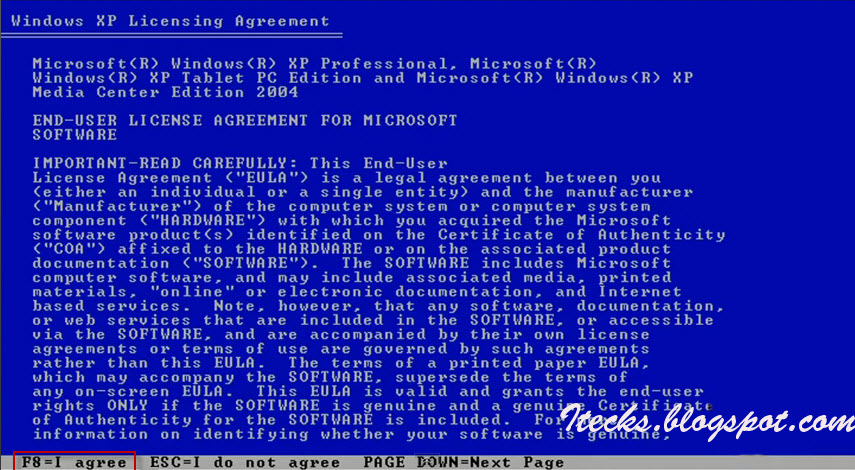
After pressing F8 you'll see that all of your drives that is in your computer will be visible to you and below them there are different options.
But..
If you have read this all and you disagree then press ESC and try any other window.!!


Step 4 :
Press Enter to install your window on C:\ drive.
But it is Not the good practice to install your window without deleting the drive.So it is recommended to delete that drive first of all and then install window on the drive.
If you have pressed Enter then follow Next step.


Step 5 :
Choose NTFS file system.
Usually most of the people choose NTFS quick but it's not the good practice to do this.
It doesn't mean that installing window on other mode will create mess but it will install your window fast then may be when you were using it some files disturb you or might be corrupted. 
       

After choosing NTFS system you can say that real installation will begin.

Step 6 :
In this Step your previous window will be formatted.
As you are installing window your previous window will be formatted in this step and next step of installing window will begin after it. 


Step 7 :
Window has been installed. 
Window has been installed it does not mean that its finish there are many other steps left e.g time settings,password,user name etc.
              
After this step a message will appear that window will reboot in 5 seconds and after rebooting again Black screen will appear as in Step 1 

but this time not press any key otherwise you have to perform all the previous steps again.Let it go.

Step 8 :
Microsoft logo is appearing.
This shows that window is almost on completed or on the last stages.As I have told you  it's not complete it's on the last stages and after this previous installations will be checked.


Step 9 :
Checking previous  installed things and restarting setup.

After this another screen will appear that show you that 39 minutes left don't take this on your heart dear it just say but actually it will complete in approximately 20-25 minutes.


Step 10 :
Another procedure is starting.
Loading bar will appear in few seconds just wait.After that you'll notice that a menu will appear which is asking you to Enter your key which is on the back side of the CD cover mostly.
      I am not showing you that step because you product key will be different than mine and why i should show you mine.!!!


Step 11 :
Press Next button.
If you want to change language then click Customize and select language with respect to you are and location.But I have choosed English.
After choosing your language proceed to the next step.


Step 12 :
Setting : User Name>Next
I have set my user name you should not copy mine set your own and then press Next.


Step 13 :
Setting : Computer name>Password>Next>
I have set my PC name & password too you should give your PC,name and then set your password for the privacy and then press Next.
Note :Usually people don't give PC a reasonable and let it go whatever is written there but this is not the good practice.We have to give a reasonable name 
to our PC because sometime when we are configuring something then we have to provide our PC name due to the requirements of other person or software.

Step 14 :
Setting : Time>Next
I have choosed mine time on the globe you should choose your time according to your region and the press Next.
      We have completed all the setting and requirements which were required in installing window and now within no time your window will be installed completely but after the completion of  
Finalizing Installation.

Step 15 :
Loading of this procedure completed.
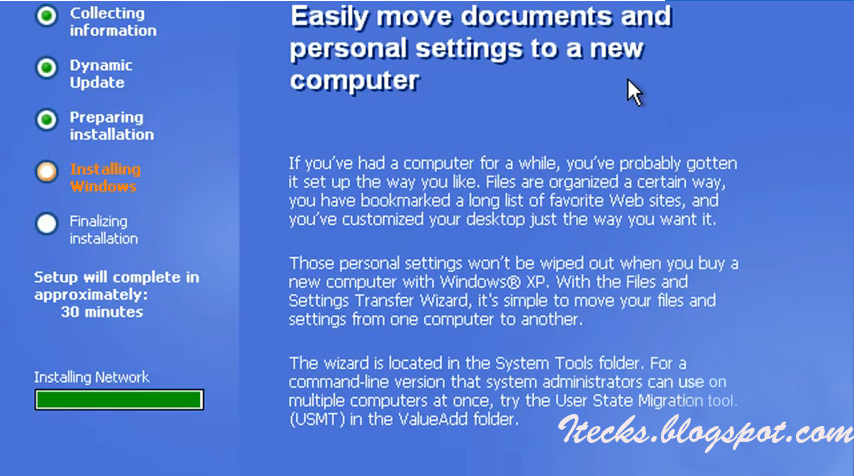
As you can see this is completed then after this next term of Finalizing installation will be completed in 3 minutes.


Step 16 :
Finalizing Installation Completed..!!!
Congrats..!!
You have installed the window and now PC is going to Reboot automatically.


Step 17 :
Configuring Settings.
It is basically recording settings,audio,display and other settings.In case you have Pentium III platform it is configured quickly but in case of Pentium IV we have to install drivers which you can say in easy words that installing audio,display and Ethernet settings.
        After this, a message box will be appeared which is basically a warning about display settings.

Step 18 :
Warning message about Display Settings.
Press Ok and proceed to your desktop.


Note : If you are facing problem in installing drivers or in partition then check these posts too.

Sunday, 11 September 2011

Google gravity

Now if you bored by using the innocent interface of google then you should try something new with google.
Then just follow these Steps.


Step 1 :
Open Google.


Step 2 :
Write " Google gravity " in Search bar.


Step 3 :
 Hit Google search.


Step 4 :
Open up the first link.


Step 5 :
And Now Enjoy..!!

Saturday, 10 September 2011

Downloading Video From Youtube

Usually People face problem in downloading videos form the YouTube.They try different software such as YouTube Downloader,Real SP player,IDM etc.But today we are going to tell you that
  • How to download a video form YouTube without any Software..??
Are you Shocked that how can we download a video without any software.??
Here is the trick with which you can download video from YouTube easily within a minute.What we have to do is just to play with the URL.

Step 1 :
Replace this Youtube with VOOBYS in the video URL.


Step 2 :
Click on Download Video and enjoy.


Bookmarks

Now a days all modern web browsers include Bookmark feature e.g Chrome,Mozilla,IE9 etc.But mostly people don't utilize this facility and they thought that What  is Bookmark ?? 

Today we are going to tell you that
  • Who discovered Bookmark.??
  • What is bookmark ??
  • What is its importance ??
  • How to Bookmark a link.?


Bookmark : Bookmark is a locally stored Uniform Resources Identifier(URI).It is a built in facility in  browsing software with which you can Save your important links or those links which are most commonly in used e.g Google,YouTube,Wikipedia etc.

Web developer Steve Kangas got the idea from the Netscape (Mosaic) JavaScript Guide,and coined the term bookmarklets in 1998.

They were called favorites or Internet Shortcuts in previous Internet Explorer.They have provided us this opportunity so that we can save informative stuff and whenever we need it then we can access it.Bookmarks are normally accessed through a menu in the user's web browser.It is a JavaScript programs and stored on computer as a bookmark and it has file extension "BMK".

They are important for those who are the regular users of internet and they browse different informative data and want to kept all data with them.


Step 1 :
Open the website which you want to bookmark & mean while check the button in the web address.

Step 2 :
Click on that button and press DONE button.


NOTE : If you'll re-install your window then all of your bookmarks will be varnished if you have not copied them.


Related Posts :
How to Backup your Bookmarks..??
Synchronizing Bookmarks..??

Downloading Free Mp3 Music

In this advanced world every one has some media with him/her and it can be i-pod,mp3 players,modulators etc.
For this purpose we need mp3 format songs which our media can support so that we can enjoy music.

Here are some of the websites which will provide you mp3 format songs.

1- Songs.Pk
Songs.pk  will provide you English,Indian and Pakistani Songs and many more things such as ring tones etc.


It will provide you Songs of all type and mobile themes,ring tones and mono tones etc.


3- Mp3hungama.com
It will Provide you Indian,Pakistani and Afghani songs + Qawallis and some traditional songs.


4- FunAtoZ.com
With Songs this site provides you also some Hollywood wallpapers,games and software.


5- Mp3fundoo.com
It will provide you best and recently released movies songs and many more things.

Downloading Games

In this advanced world of digital media games have gather their own status and industry which are serving their fans to provide them best games nearest to the reality with the use of 3D work and a lot of things.In old days games were small and they just give us the idea of a character and we played them and enjoy it but now things have changed and advancement is increased or you can say double or tripled.

In these days games have characters and atmosphere which are nearest to the reality that's why size of the game is too big and they were available on DVDs only to maintain the quality and for size too and that is the reason that they are costly in the market.But if you have internet connection then what's the need to purchase DVDs..??

So,today we are going to tell you that how you can download games from the web and the best method for downloading games form the WEB is through torrent.
Here is the method with which you can download games and enjoy them FREE.


Step 1 :
Open a torrent website and search your desired game which will be in "iso" file.
e.g  Download file from IsoHunt


Step 2 :
File that you have downloaded will open in your torrent downloading Software
i.e U-torrent,Bit-torrent or Vuze etc.

Step 3 :
Install that file and enjoy your favorite game.


Note : If you don't know that how to download torrent file or you are facing trouble in installing these games then visit our posts.

Downloading Torrent File
Installing Daemoon Tools

PDF Extension for Microsoft Word

We have received a lot of requests from our followers that how to add an extension of pdf in Microsoft word ??
Today we are going to tell you that how you can do this with in a minute.

As you people know this extension is important for you because if you don't have this extension in Microsoft Word then you cannot secure your documents or made them read only so that no one can edit it.

Here is the link of that of extension download it today and secure your personal Documents.

Download it.!!
PDF Extension

This is how it will appear in Save As menu.